Taking a restaurant order
Pick a table, add dishes by short code, and send the KOT to the kitchen.
Open Tables & orders. Tap a table to start or continue its order. For a parcel, use Takeaway or parcel.
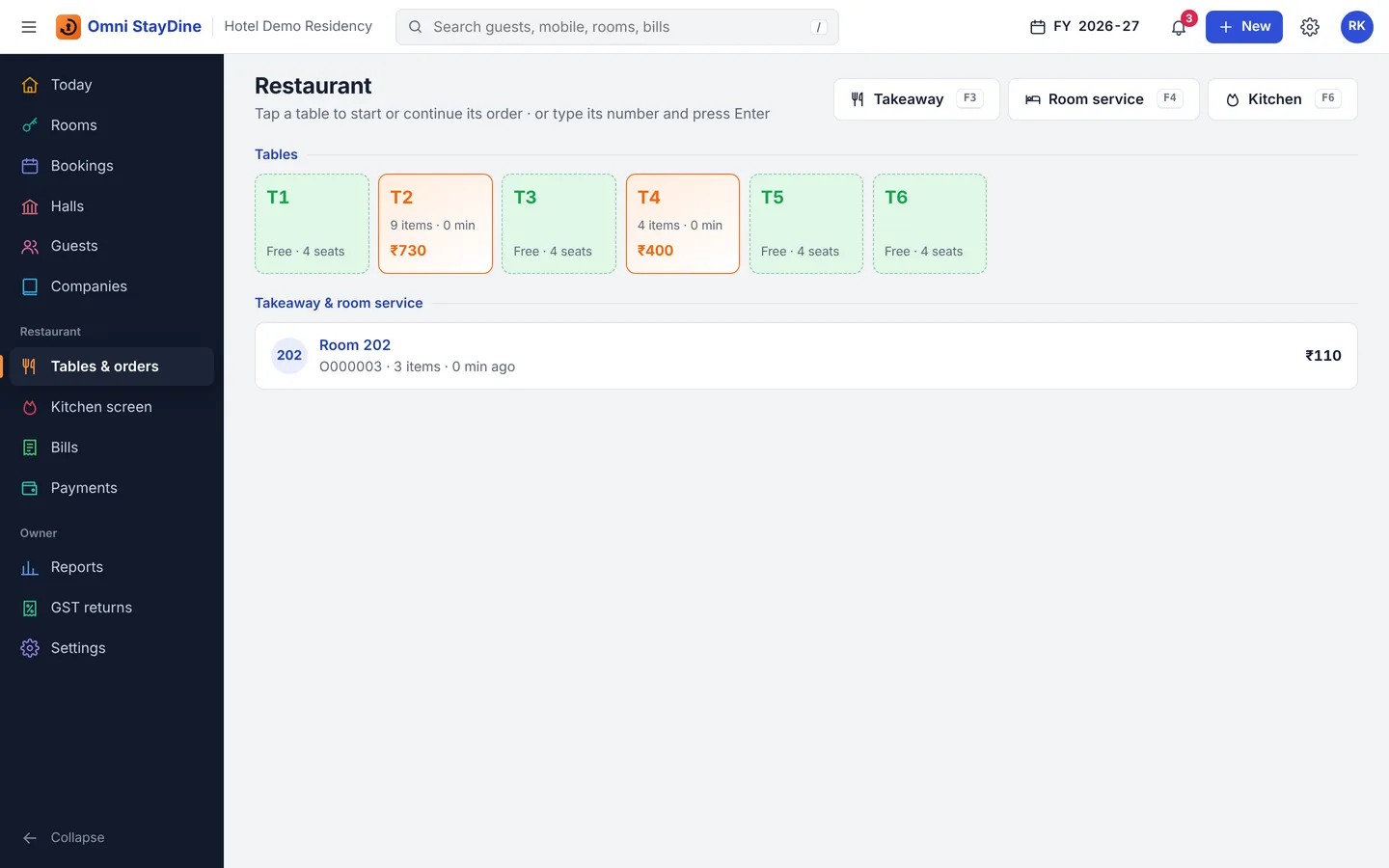
The tables screen
It updates itself every few seconds, so a table opened on another PC or phone shows up without reloading. Colours: green dotted is free, blue is running, amber means the bill is given and payment is due, red means no KOT for 45 minutes (or open since yesterday). Each table shows items, guests, when the last KOT went and the waiter.
Right-click a table, long-press it on a phone, or tap ⋯ for quick actions: open, take payment, make and print the bill, reprint the KOT, move to another table, or cancel an empty order.
Add dishes
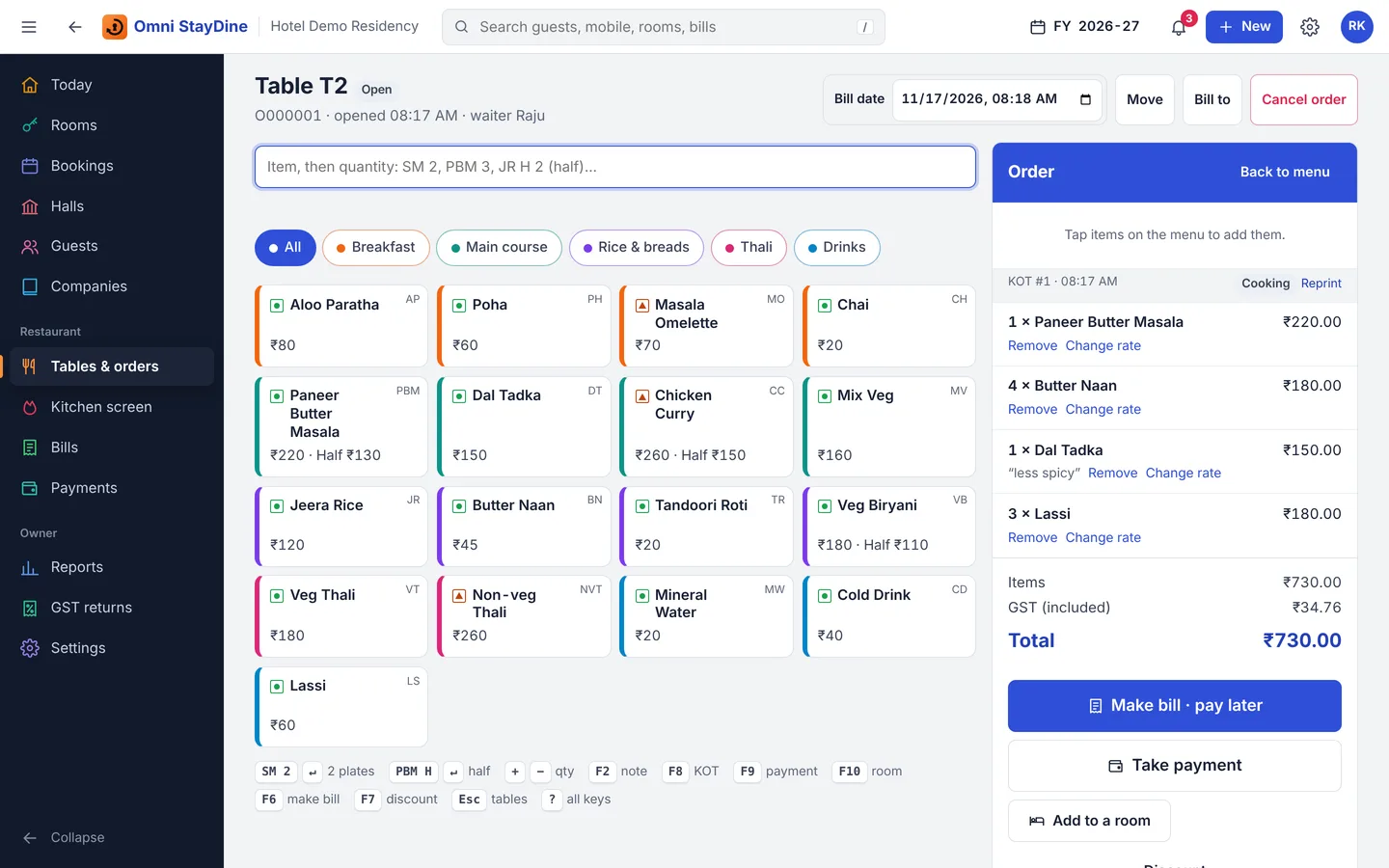
- Type the short code and quantity, like
PBM 2, and press Enter. Or tap dishes on the menu. +and-change the quantity of the last dish.- F2 (or Add note under the dish) opens a small box for the kitchen: "less spicy, no onion". Enter saves it.
- Half plate: tap Half under the dish, or type
H, likePBM H.
Sizes
A dish with sizes shows them as buttons under it: S ₹100 · M ₹120 · L ₹160. Until one is picked the line says "Size?" in red and the KOT does not go. By code: type MP M 2 and press Enter for 2 Medium pizzas. KOT and bill show "Margherita Pizza (M)". The item sales report keeps one row per dish with the split, like "S 12 · M 10 · L 8".
Add-ons
A dish with add-ons shows them as buttons under it, like + Extra cheese ₹30. Tap to add, tap again to take off. The price goes up at once, and the KOT and bill show "+ Extra cheese".
Two burgers, cheese on only one? Add the burger, tap + Extra cheese, then add the burger again: the second one comes as its own line without cheese.
Send to the kitchen
Press Send to kitchen (F8). The KOT prints in the kitchen and shows on the kitchen screen. Use Send, no print (Shift + F8) if the kitchen uses only the screen.
More dishes later? Add them and press F8 again. Only the new dishes go on the new KOT.
Other actions
- Move to another table if the guests shift.
- Remove item after it was sent: give a reason. The kitchen sees it crossed out and the owner sees who removed it.
- Change rate of a dish, with a reason (special price agreed, regular customer…).
When the guests are done, make the bill. See Restaurant bill and payment.